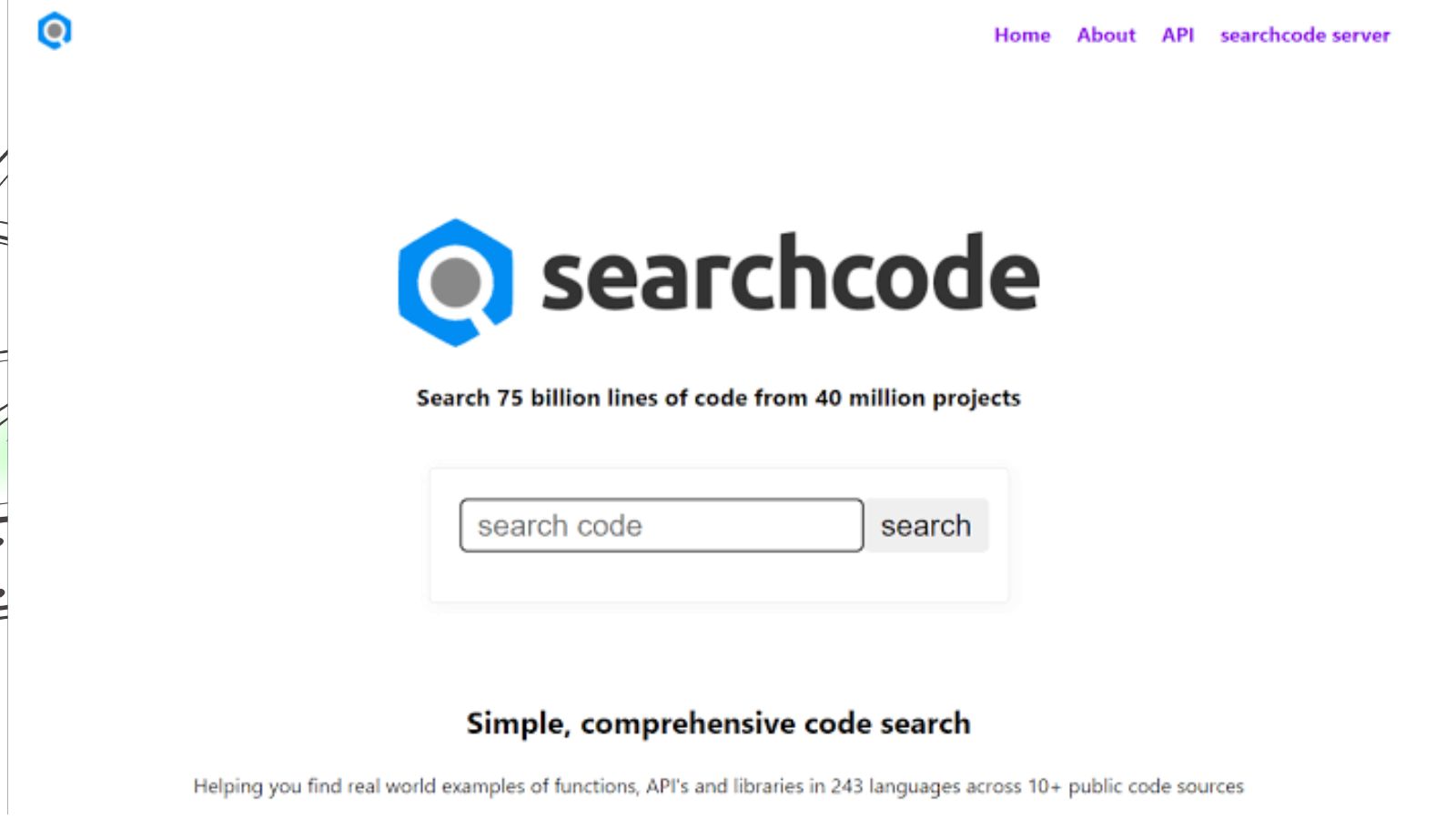
: Search engine source codes are the underlying HTML, CSS, and JavaScript that browsers and search engine crawlers read to understand and index your website. Viewing, understanding, and optimizing your site’s source code directly impacts how well your pages rank in search results.
Every webpage you visit has a hidden layer. Beneath the polished design and clickable buttons sits a structured block of code — and search engines read every line of it.
Understanding search engine source codes is not just a developer’s concern. SEO professionals, site owners, and content strategists who know how to read and optimize source code consistently outperform those who don’t. The reason is straightforward: search engine crawlers like Googlebot never see your site the way a human does. They parse raw HTML, evaluate your tag structure, follow your internal links, and make ranking decisions based entirely on what your source code tells them.
This guide covers everything you need to know. You’ll learn what search engine source codes are, how to view a website’s source code using your browser, how crawlers interpret HTML elements, how JavaScript-based search functionality affects SEO, which code search tools are worth using, and how to optimize your source code for higher rankings. You’ll also find a breakdown of the most common technical mistakes that silently suppress your site’s visibility.
By the end, you’ll have a clear, actionable framework for using source code knowledge as a competitive SEO advantage.
[Suggested image placement: A split-screen screenshot showing a webpage rendered in a browser on the left and its raw HTML source code on the right. Alt text: “Browser view versus HTML source code view of the same webpage.” Caption: “What users see and what search engines read are two entirely different things.”]
What Are Search Engine Source Codes?
Search engine source codes refer to the raw HTML markup that makes up a webpage — the machine-readable layer that browsers render into visual content and that search engine crawlers analyze to understand, index, and rank pages.
Every webpage consists of three core code types:
- HTML (HyperText Markup Language): Defines the structure and content of the page — headings, paragraphs, images, links, and metadata.
- CSS (Cascading Style Sheets): Controls visual presentation — layout, colors, fonts, and spacing. Search engines largely ignore CSS for ranking purposes.
- JavaScript (JS): Adds interactivity and dynamic content — dropdown menus, search boxes, and live content feeds. JavaScript handling is one of the most nuanced areas in technical SEO.
When Googlebot crawls a URL, it retrieves the raw HTML first, then processes JavaScript separately during a second rendering phase (a process called deferred crawling). This two-phase approach means that content loaded exclusively via JavaScript may not be indexed immediately — or in some cases, at all.
The term “searchsource” (which draws around 14,800 monthly searches) often refers to this concept: understanding the coded source of a site as it relates to search engine behavior. For SEO purposes, your source code is your site’s handshake with every search engine.
How to View the Source Code of a Website
You don’t need developer tools or specialized software to inspect source code. Every modern browser gives you direct access.
Using Browser Developer Tools
Browser developer tools give you the most detailed view of a page’s source code, including dynamically rendered content loaded by JavaScript.
To open Developer Tools in Google Chrome:
- Right-click anywhere on the page.
- Select “Inspect” from the context menu.
- Navigate to the “Elements” tab to view the live DOM (Document Object Model).
The Elements tab shows the rendered HTML — including any content injected by JavaScript after the page loads. This is the version of the page that Googlebot’s renderer eventually sees, making it the most accurate representation for SEO analysis.
Firefox, Safari, and Edge all offer equivalent developer tools accessible via the same right-click method or by pressing F12.
[Suggested image placement: A screenshot of Chrome DevTools open on the Elements tab, highlighting the HTML structure panel. Alt text: “Chrome DevTools Elements tab showing live HTML DOM structure.” Caption: “Chrome DevTools shows the rendered page source, including JavaScript-loaded content.”]
Using the page-source Command in Your Browser
The fastest way to view a page’s raw, unrendered HTML is the browser’s built-in page-source command. This method shows exactly what the server delivers before JavaScript executes — the same initial response Googlebot’s crawler receives on first contact.
To use this method:
- In Chrome or Firefox, type view-source: directly before any URL in the address bar. Example: view-source:https://jaytechdigital.com/
- Alternatively, use the keyboard shortcut Ctrl+U (Windows) or Cmd+Option+U (Mac).
The search query format page-source:https://[url] generates around 1,600 monthly searches, which confirms that many site owners and SEO practitioners regularly use this technique to audit pages. What you see is the pre-render HTML — useful for checking that your title tags, meta descriptions, canonical tags, and structured data are present in the initial server response rather than injected later by scripts.
A key rule: if a critical SEO element like your H1 or canonical tag only appears in the rendered DOM (DevTools) and not in the raw view-source output, search engines may not consistently process it. Keep important markup in the static HTML wherever possible.
How Search Engines Read and Crawl Source Code
Search engines use automated bots — Googlebot being the most consequential — to crawl URLs, download the HTML, and extract signals that feed into ranking algorithms. The crawl process prioritizes efficiency, so how your source code is structured directly determines how much of your content gets indexed and how quickly.
What Key HTML Elements Do Search Engines Prioritize?
Googlebot and other crawlers assign weight to specific HTML elements when evaluating a page’s relevance and quality:
- Title tag (<title>): The single most important on-page SEO element. It tells search engines the primary topic of the page and appears as the clickable headline in search results.
- Meta description (<meta name=”description”>): Not a direct ranking factor, but it influences click-through rates from search results pages.
- Heading tags (<h1> through <h6>): Signal content hierarchy. Each page should have one <h1> that contains the primary keyword.
- Canonical tag (<link rel=”canonical”>): Prevents duplicate content issues by pointing crawlers to the preferred version of a URL.
- Structured data (Schema.org JSON-LD): Helps search engines understand the type of content on a page — articles, products, FAQs, events — and can trigger rich results in SERPs.
- Internal links (<a href=”…”>): Enable crawlers to discover new pages and distribute PageRank across your site.
- Alt attributes on images (<img alt=”…”>): Provide text descriptions of images that crawlers index for both web and image search.
- Robots meta tag (<meta name=”robots”>): Controls whether a page should be indexed and whether links on it should be followed.
How Does Source Code Structure Impact SEO Rankings?
Source code structure affects SEO in three primary ways: crawl efficiency, content clarity, and rendering speed.
Crawl efficiency improves when your HTML is clean and logically ordered. Deeply nested tables, excessive inline styles, and JavaScript-heavy layouts force crawlers to work harder to extract content — and crawlers operate on a crawl budget. Large sites with bloated or disorganized source code risk having important pages deprioritized.
Content clarity depends on semantic HTML. Using the correct tags for their intended purpose — <article> for editorial content, <nav> for navigation, <header> and <footer> for their respective page areas — helps search engines build an accurate understanding of your page’s topic and structure.
Page speed, which Google uses as a ranking signal (confirmed as a factor in Google’s Core Web Vitals framework), is directly tied to source code weight. Unused CSS, render-blocking JavaScript, and uncompressed HTML all increase load time and depress rankings.
[Suggested image placement: A diagram showing how Googlebot flows from crawling to rendering to indexing, with HTML elements labeled at each stage. Alt text: “Diagram of Googlebot crawl, render, and index process with HTML element labels.” Caption: “Search engines process source code in two stages: initial crawl and JavaScript rendering.”]
JavaScript Search and Website Content Search Boxes
Adding a search function to your website improves user experience — visitors find content faster, and session depth often increases as a result. But the method you use to implement that search function carries real SEO implications.
What Is a Simple JavaScript Code to Search an Entire Root Website?
A client-side JavaScript search box queries your site’s content without sending requests to a server. The simplest implementation indexes page content at load time and filters results as the user types.
A basic implementation pattern looks like this:
<input type=”text” id=”searchInput” onkeyup=”searchFunction()” placeholder=”Search…”><ul id=”searchResults”></ul><script>function searchFunction() { const query = document.getElementById(‘searchInput’).value.toLowerCase(); const results = document.getElementById(‘searchResults’); results.innerHTML = ”; if (query.length < 2) return; const pages = [ { title: ‘AI Technology’, url: ‘/category/ai/’ }, { title: ‘Smartphone Reviews’, url: ‘/category/smartphones/’ }, { title: ‘Performance Testing Web Applications’, url: ‘/performance-testing-web-applications/’ } ]; pages.filter(p => p.title.toLowerCase().includes(query)).forEach(p => { results.innerHTML += `<li><a href=”${p.url}”>${p.title}</a></li>`; });}</script>
This approach works well for smaller sites with a static list of pages. For larger sites, a library like Lunr.js — a lightweight, open-source full-text search engine for the browser — builds an indexed search engine from your content without any server dependency.
The search query “simple javascript code to search entire root website” generates approximately 1,600 monthly searches, which indicates significant demand from site owners looking to add this functionality without a backend integration.
How Does a JavaScript Search Box Affect SEO?
A JavaScript search box itself does not harm SEO — but its implementation can. The key concern is that search results pages generated dynamically by JavaScript are often blocked from indexing by a noindex directive or by being inaccessible to crawlers entirely.
Best practices for SEO-safe JavaScript search implementation:
- Block the search results URL pattern from indexing using robots.txt or a noindex meta tag to prevent thin, duplicate content from being crawled.
- Ensure the search input element is rendered in the initial HTML (not injected via JavaScript) so it is accessible to screen readers and crawlers.
- Do not use JavaScript search as a substitute for a logical internal linking structure. Crawlers follow links — they don’t use search boxes.
- For large sites, consider pairing client-side search with a sitemap to ensure all pages remain discoverable.
JavaScript-heavy sites interested in the broader performance implications can explore Jaytech Digital’s coverage of performance testing web applications for practical benchmarking guidance.
Code Search Tools and Resources
Beyond your browser’s built-in options, several dedicated tools help you search, audit, and analyze source code at scale.
Google Search Console: The most authoritative tool for understanding how Googlebot sees your site. The URL Inspection tool shows the rendered HTML of any indexed page and flags crawl errors or indexing issues. Free to use.
Screaming Frog SEO Spider: Crawls your site the way Googlebot does and extracts every SEO-relevant element from source code — title tags, meta descriptions, heading structure, canonical tags, response codes, and more. The free tier crawls up to 500 URLs.
Chrome DevTools (Sources Tab): Lets you view, search, and edit all JavaScript and CSS files loaded by a page. The Sources tab is particularly useful for identifying render-blocking scripts.
GitHub Code Search: For developers building or auditing web tools, GitHub’s code search (accessible at github.com/search) lets you search public repositories by language, file type, and code snippet. Relevant for finding open-source implementations of JavaScript search functionality.
View Source (Browser Command): As described earlier, view-source: remains one of the fastest methods for a quick SEO audit of any public page’s raw HTML.
Google’s Rich Results Test: Paste a URL or code snippet to check whether your structured data is valid and eligible for rich results in Google Search.
Choosing between these tools depends on your goal. Use Screaming Frog for site-wide audits, Google Search Console for indexing diagnostics, and view-source for fast, page-level checks.
[Suggested image placement: A side-by-side comparison of Screaming Frog’s crawl output and Google Search Console’s URL Inspection panel. Alt text: “Screaming Frog SEO Spider crawl report next to Google Search Console URL Inspection result.” Caption: “Screaming Frog and Google Search Console together give you the most complete picture of how your source code is read.”]
How to Optimize Your Website Source Code for Search Engines
Source code optimization is the foundation of technical SEO. The following practices apply to any site, regardless of platform.
What Are the Clean Code Practices That Improve Crawlability?
Crawlability improves when source code is minimal, logical, and free of errors. Apply these practices directly:
- Remove unused CSS and JavaScript. Unused code increases file size and slows rendering. Tools like Chrome’s Coverage tab (in DevTools) identify unused code in real time.
- Minimize inline styles. Inline CSS (style=”color:red”) scatters presentation logic throughout the HTML and makes pages harder to maintain and parse.
- Use semantic HTML5 elements. Replace generic <div> and <span> containers with <article>, <section>, <aside>, <nav>, <header>, and <footer> where appropriate.
- Fix broken links. Internal links returning 404 errors waste crawl budget and create dead ends in your site’s link graph. Audit these monthly.
- Compress your HTML. HTML minification removes whitespace, comments, and redundant characters without affecting functionality. Most CMS plugins and build tools handle this automatically.
What Technical SEO Elements Should Be Included in Your Source Code?
Every page on your site should include the following elements in its source code:
- A unique, keyword-containing <title> tag (50–60 characters).
- A compelling <meta name=”description”> (150–155 characters) for every page.
- One <h1> tag per page, containing the primary keyword.
- A <link rel=”canonical”> tag pointing to the preferred URL version.
- An <html lang=”en”> attribute on the root element to declare language.
- Open Graph tags (og:title, og:description, og:image) for social sharing.
- Schema.org JSON-LD structured data appropriate to the page type (Article, BreadcrumbList, FAQPage, etc.).
- An XML sitemap linked in robots.txt and submitted to Google Search Console.
- A valid robots.txt file that explicitly allows crawling of important directories.
Jaytech Digital’s apps category covers additional tools that help automate the monitoring of these technical elements across large sites.
Common Source Code SEO Mistakes to Avoid
These are the errors that most frequently suppress rankings — and most are invisible to the naked eye without a source code inspection.
Duplicate title tags and meta descriptions. Every page needs unique tags. Duplicate meta information confuses crawlers and dilutes ranking signals across multiple pages. Screaming Frog flags these in seconds.
Missing or misconfigured canonical tags. A canonical tag pointing to the wrong URL, or absent entirely on paginated or filtered pages, can cause duplicate content issues that split ranking authority.
Noindex tags on indexable pages. This happens during staging site migrations when <meta name=”robots” content=”noindex”> is accidentally left on production pages. Always verify with view-source after any site launch.
JavaScript-only navigation. Navigation menus rendered exclusively by JavaScript may not be crawlable. Critical navigation links should exist in the static HTML.
Unoptimized image alt attributes. Empty or missing alt attributes leave image content invisible to search engines. Every informational image needs a descriptive alt text that accurately reflects the image content.
Render-blocking resources. JavaScript and CSS files loaded in the <head> without async or defer attributes block page rendering and increase Time to First Byte — both of which affect Core Web Vitals scores.
Multiple H1 tags. Some CMS themes output the site name and the post title both as <h1>. This dilutes the heading hierarchy and sends conflicting signals about the page’s primary topic.
Correcting these issues does not require a full site rebuild. Most can be resolved in a single audit session using the tools described earlier in this guide. For a deeper look at how rendering performance connects to SEO outcomes, Jaytech Digital’s performance testing guide walks through the benchmarking process step by step.
[Suggested image placement: A checklist-style graphic showing seven common source code SEO mistakes with red X marks, followed by their corrected versions with green checkmarks. Alt text: “Checklist of seven common source code SEO mistakes and their corrections.” Caption: “Most source code SEO errors are fixable in under an hour once you know where to look.”]
Frequently Asked Questions About Search Engine Source Codes
What is the difference between view-source and Chrome DevTools for SEO?
View-source (view-source:https://[url]) shows the raw HTML delivered by the server before JavaScript executes. Chrome DevTools shows the rendered DOM after JavaScript runs. For SEO, use view-source to check that critical elements like title tags, canonical tags, and meta descriptions are in the static HTML. Use DevTools to verify content that loads dynamically.
Does JavaScript content get indexed by Google?
Google indexes JavaScript-rendered content, but through a second-wave rendering process that can take days to weeks after the initial crawl. Server-side rendering (SSR) or static site generation is faster and more reliable for SEO-critical content. Content that appears only after a user interaction (such as a click or scroll) is unlikely to be indexed at all.
How do I check the source code of any website?
Type view-source: before the full URL in your browser’s address bar (example: view-source:https://jaytechdigital.com/). Alternatively, press Ctrl+U on Windows or Cmd+Option+U on Mac. This works on any publicly accessible webpage and requires no tools or extensions.
What is a canonical tag and why does it matter for source code SEO?
A canonical tag is an HTML element placed in the <head> section of a page’s source code: <link rel=”canonical” href=”https://example.com/preferred-url/”>. It tells search engines which version of a URL to treat as the original when duplicate or near-duplicate content exists across multiple URLs. Without it, search engines may split ranking authority between duplicates instead of concentrating it on your preferred page.
Does page load speed affect how search engines read source code?
Googlebot operates on a crawl budget. Slow-loading pages consume more crawl budget per visit, which can reduce the number of pages crawled per session on large sites. Additionally, Google uses Core Web Vitals — which measure real-world loading performance — as a ranking signal. Optimizing your source code to reduce file size and eliminate render-blocking resources directly improves both crawlability and rankings.
How does structured data in source code improve search visibility?
Structured data, added to source code as JSON-LD markup using Schema.org vocabulary, provides explicit context about your content type. A page with valid Article, FAQPage, or Product schema is eligible for rich results in Google Search — enhanced listings that include star ratings, FAQ dropdowns, or price information. Rich results generate significantly higher click-through rates than standard blue-link results.
What is the best tool for auditing source code for SEO issues?
For site-wide audits, Screaming Frog SEO Spider is the industry standard. It crawls every URL on your site and exports a complete report of SEO-relevant source code elements. For individual page checks, Google Search Console’s URL Inspection tool shows exactly how Google sees a specific URL — including the rendered HTML, index status, and any detected structured data.
Your Source Code Is Your SEO Foundation
Search engine source codes determine how your site gets crawled, rendered, and ranked. Clean, well-structured HTML accelerates indexing. Properly implemented technical SEO elements — canonical tags, structured data, semantic markup — sharpen your relevance signals. JavaScript handled correctly expands functionality without sacrificing visibility.
The practical starting point is simple: use view-source to audit your most important pages today. Check that your title tags, canonical tags, and H1s are present in the static HTML. Run Screaming Frog on your full domain to surface broken links, duplicate tags, and missing meta descriptions. Submit your XML sitemap to Google Search Console and monitor your index coverage regularly.
Source code optimization is one of the highest-leverage activities in SEO precisely because most site owners overlook it. The changes are invisible to users — but search engines notice every one of them.
For more technical insights, explore Jaytech Digital’s AI coverage for the latest developments in how machine learning is reshaping search algorithms, or browse the apps category for tools that help automate your technical SEO workflow.